Aaple Sarkar: register, track your application, download your certificate and verify it with the 18-digit barcode (step by step)
On aaplesarkar.mahaonline.gov.in (Government of Maharashtra): register with your mobile number, apply under the department (for certificates usually Revenue Department), pay the fee and save the application ID. Track it with "Track your Application" (choose department + service, enter the ID). When it's approved, log in and download the digitally signed certificate. Anyone can verify a certificate with "Verify Your Authenticated Certificate" by entering its 18-digit barcode. Help: 1800 120 8040 (toll free, 24×7). If the service isn't given in time, you can appeal online.
Key facts Last verified: 25 Nov 2026
| Item | Details | Source |
|---|---|---|
| Portal | aaplesarkar.mahaonline.gov.in: Maharashtra Right to Public Services portal (apply, track, verify, appeal) | Aaple Sarkar portal |
| Register | Citizen registration page on the portal ("Create your profile to apply online for notified services") | Aaple Sarkar portal |
| Track | "Track your Application": enter the application ID you received when applying | Aaple Sarkar portal |
| Verify | "Verify Your Authenticated Certificate": enter the 18-digit barcode on the certificate | Aaple Sarkar portal |
| Seva Kendra list | "Sewa Kendra" page: find a service centre near you | Aaple Sarkar portal |
| Mobile app | Services are also available through the "RTS Maharashtra" app | Maharashtra State Commission for Right to Services (on the portal) |
| Helpline | 1800 120 8040 (toll free, 24×7) | Aaple Sarkar portal |
Kavita applied for her son's income certificate at a Setu centre two weeks ago. The operator gave her a slip and said "check online". She opened the website, saw dozens of buttons and gave up. This page is for her: where to click, what to type, and what to do if the certificate is late.
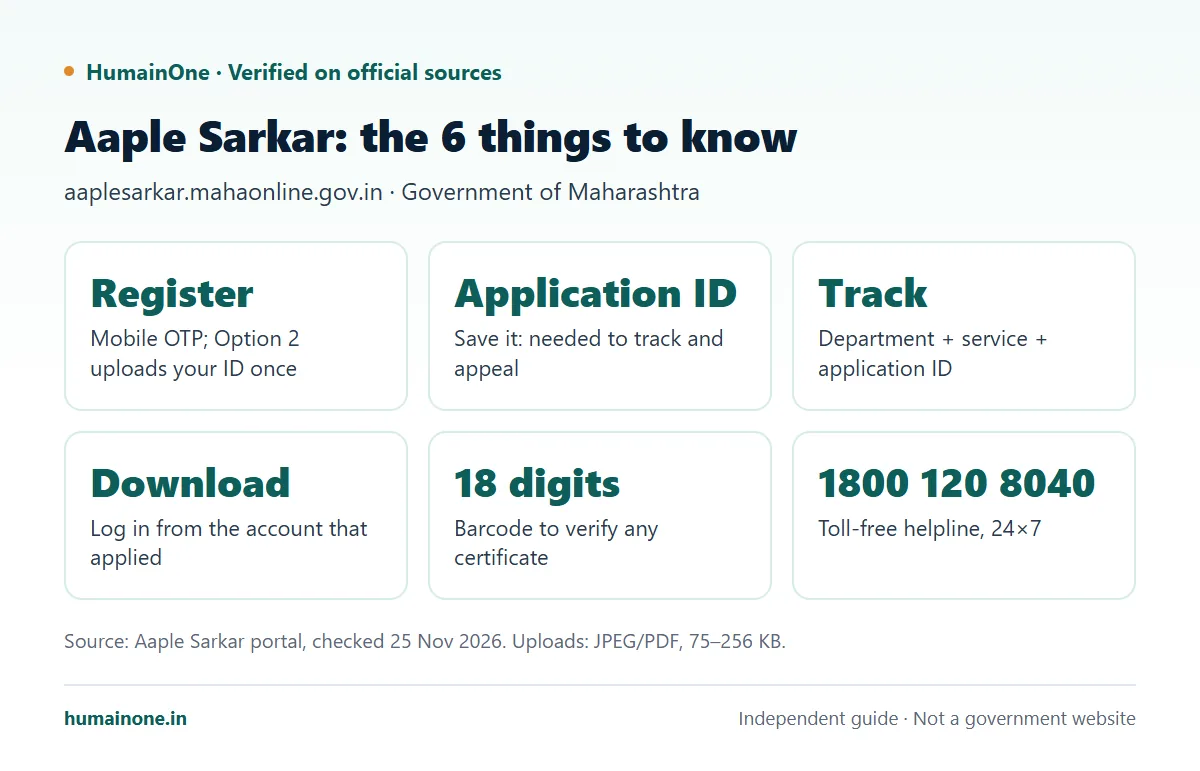
Official links: Aaple Sarkar home · Citizen registration · Seva Kendra list · Helpline 1800 120 8040 (toll free, 24×7). Use only the official address: aaplesarkar.mahaonline.gov.in. HumainOne is not connected to it and never asks for your login, OTP or Aadhaar.
What do you want to do? (pick one)
What do you want to do on Aaple Sarkar?
Runs on your deviceSee every answer in this checker
Track your application
On the Aaple Sarkar home page, open Track your Application → choose the department (e.g. Revenue) and the service (e.g. Income Certificate) → enter the application ID from your receipt or SMS → submit. The status shows where the file is.
Download the signed certificate
Log in with the same account you applied from → open your applications list → when the status shows approved/delivered, download the digitally signed PDF. If a Seva Kendra applied for you, the certificate is in their login: go back with your receipt and ask them to print it.
Verify with the 18-digit barcode
On the Aaple Sarkar home page, open Verify Your Authenticated Certificate and enter the 18-digit barcode number printed on the certificate. Use this for any certificate someone gives you, especially from an agent.
Register and apply
Open the citizen registration page, register with your mobile number, log in, pick the department and service, fill the form, upload documents, pay the fee and save the application ID. Or visit a Seva Kendra with your documents and the operator applies for you. Which certificate do you need? Certificates finder.
Appeal online
Each service has a time limit (e.g. income certificate 15 days, caste certificate 45 days). If it's late or rejected without proper reason, file a first appeal (online on the portal or at the Seva Kendra) to the officer named for that service. Second appeal goes to the next officer, and the final appeal to the State Commission for Right to Services.
Step 1: register (one time)
The registration page offers two options (checked 25 Nov 2026):
| Option | What you do | Later, when applying |
|---|---|---|
| Option 1 | Verify your mobile number with OTP, then create a user name and password | You attach your photo, identity and address proof with each application |
| Option 2 | Also upload your details, photo, identity proof and address proof once (with OTP) | No need to attach photo, identity and address proof again |
- Open aaplesarkar.mahaonline.gov.in and click New User? Register Here.
- Choose Option 1 (quick) or Option 2 (upload ID once; better if you'll apply for several certificates).
- Enter your 10-digit mobile number, tap Send OTP and enter it. Pick a user name (use Check Username Availability).
- Set a password with at least one digit, one capital letter, one small letter and one special symbol.
- Uploads must be JPEG or PDF, between 75 KB and 256 KB. Compress big phone photos first.
- Write down your user name. If you forget it or the password, use Forgot Username / Forgot Password on the login box.
Step 2: apply and save the application ID
- Log in and pick the department. Most certificates (income, domicile, caste, NCL, farmer certificates) are under Revenue Department.
- Choose the service, fill the form, upload clear scans of the documents the service asks for.
- Pay the fee shown and save the receipt / application ID (screenshot it). You need it for tracking and appeals.
- No computer? Go to an Aaple Sarkar Seva Kendra / Setu (find one). The operator fills the form; you get a receipt.
Step 3: track, download and verify
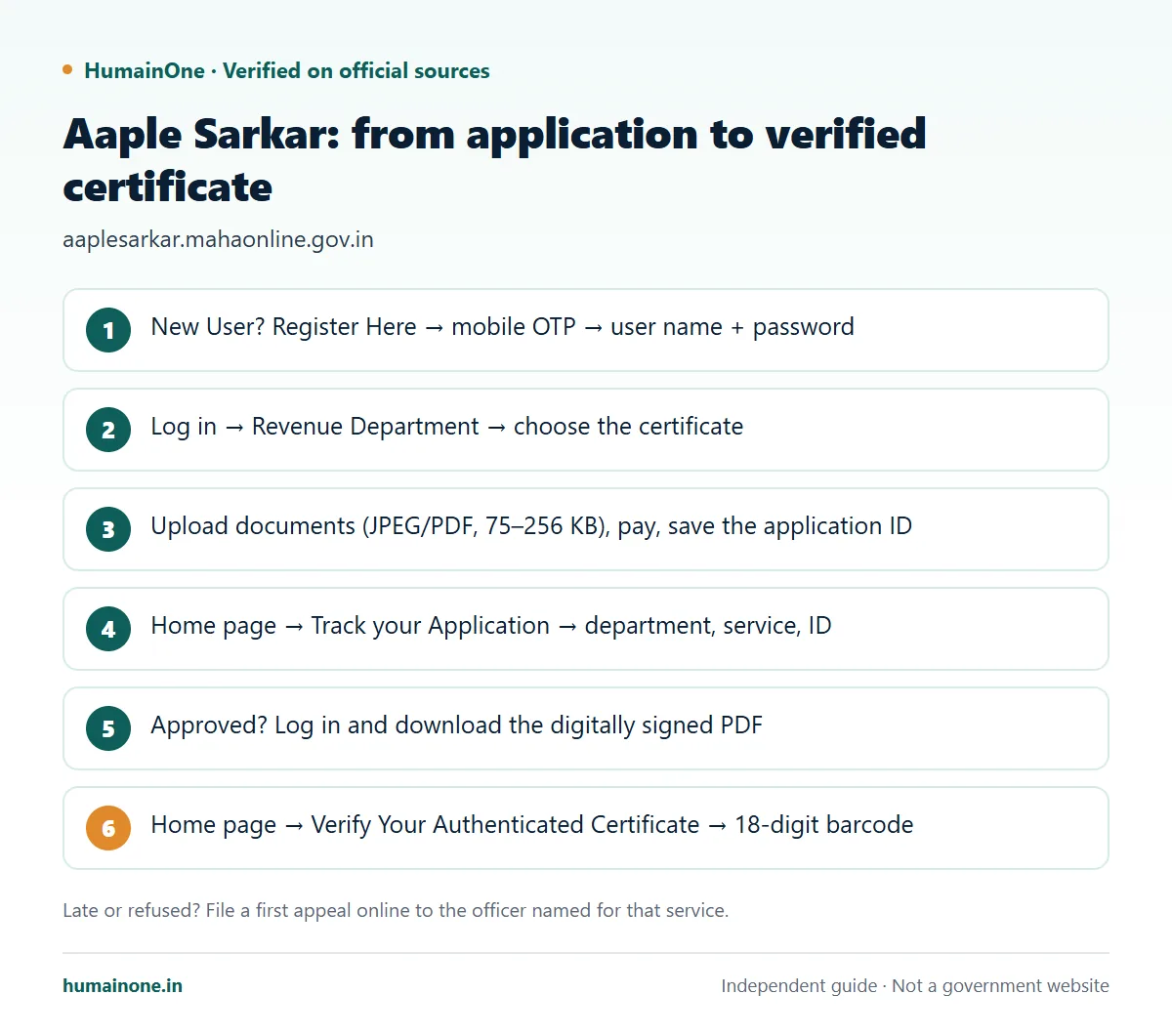
| What you want | Where on the portal | What to enter |
|---|---|---|
| Track status | Home page → Track your Application | Department, service, application ID |
| Download | Log in → your applications | Download the signed PDF when approved |
| Verify | Home page → Verify Your Authenticated Certificate | The 18-digit barcode number on the certificate |
| Help | Call centre | 1800 120 8040 (toll free, 24×7) |
Time limits for common certificates
| Certificate | Who decides | Days by law | Guide |
|---|---|---|---|
| Income certificate | Nayab Tahsildar | 15 | Guide |
| Age, Nationality & Domicile | Tahsildar | 15 | Guide |
| Non-creamy layer | Sub-Divisional Officer | 21 | Guide |
| Caste certificate | SDO / Deputy Collector | 45 | Guide |
| Temporary residence | Tahsildar | 7 | Guide |
| Agriculturist / small land holder / landless | Tahsildar | 15 | Guide |
| Senior citizen certificate | Tahsildar | 7 | Guide |
| Gazette name change | Govt Printing Directorate | 15 | Guide |
Common problems and fixes
- "I lost the application ID." Look for the SMS or the receipt; if a Seva Kendra applied, they can find it in their login.
- "Status hasn't changed for days." Check whether the office has asked for a missing document (shown in the status). If the time limit has passed, appeal.
- "I can't find the download button." The PDF appears only in the login that applied. Seva Kendra applications are downloaded by the centre.
- "The barcode says not found." Re-type the 18 digits carefully. If it still fails, ask the issuing office. Don't use a certificate that doesn't verify.
- OTP not coming: check the mobile number on your profile and network; try again after a few minutes. Never share the OTP with anyone.
Fake "Aaple Sarkar" websites and agents. Type aaplesarkar.mahaonline.gov.in yourself. Don't click links from WhatsApp messages. Government fees are paid on the portal or at the Seva Kendra with a receipt. And always verify the certificate with its 18-digit barcode before using it.
Example: Kavita checks the income certificate
- On her phone she opens aaplesarkar.mahaonline.gov.in → Track your Application → Revenue Department → Income Certificate → types the ID from the Setu slip. Status: approved.
- The certificate was applied from the Setu centre's login, so she goes back with the slip. The operator prints the signed PDF.
- At home she checks it with Verify Your Authenticated Certificate using the 18-digit barcode. It's genuine.
(An illustration of the steps, not a real person's record.)
Frequently asked questions
How do I check my Aaple Sarkar application status?
On aaplesarkar.mahaonline.gov.in, open "Track your Application", choose the department and service, and enter the application ID from your receipt or SMS.
How do I download my certificate from Aaple Sarkar?
Log in with the same account you applied from, open your applications, and download the digitally signed PDF when it shows approved. If a Seva Kendra applied for you, they download and print it from their login.
How can I verify an Aaple Sarkar certificate?
On the Aaple Sarkar home page, open "Verify Your Authenticated Certificate" and enter the 18-digit barcode number printed on the certificate.
How do I register on Aaple Sarkar?
Click "New User? Register Here" on aaplesarkar.mahaonline.gov.in, choose Option 1 (mobile OTP, then user name and password) or Option 2 (also upload your photo, ID and address proof once), verify the OTP, and set a password with a digit, a capital letter, a small letter and a special symbol.
What file size does Aaple Sarkar accept for documents?
The registration page asks for JPEG or PDF files between 75 KB and 256 KB.
What is the Aaple Sarkar helpline number?
1800 120 8040 (toll free, 24×7).
Is there an Aaple Sarkar mobile app?
Yes. The Right to Services Commission's page says services can be availed through the "RTS Maharashtra" app as well as the Aaple Sarkar web portal.
Where is the nearest Aaple Sarkar Seva Kendra?
Use the "Sewa Kendra" page on aaplesarkar.mahaonline.gov.in to find service centres in your area.
What if my certificate is not given in time?
File a first appeal online (or at the Seva Kendra) to the first appellate officer named for that service. Further appeals go to a senior officer and finally to the State Commission for Right to Services.
Official links
Use only these government websites. HumainOne is not connected to any of them.
- Aaple Sarkar portalApply, track, verify; helpline 1800 120 8040
- Citizen registrationCreate your profile
- Seva Kendra listFind a centre
- Right to Services Act and CommissionAppeals; RTS Maharashtra app
Disclaimer: HumainOne is an independent information website. We are not affiliated with UIDAI, the Income Tax Department, EPFO, NPCI, the Election Commission, the Government of Maharashtra or any government body. We do not accept applications, documents or fees. Information is checked against official sources on the date shown but rules change — always confirm on the official website before acting. Calculators give estimates, not official figures, and this is not tax or legal advice.